


The 10-Minute QBO Health Check: 3 Red Flags to Spot Before Tax Season

Tax season is coming, and your QuickBooks file might be hiding problems you don't even know about yet.
The good news? You don't need to spend hours digging through every transaction to spot the big issues. A quick 10-minute health check can catch the red flags that actually matter: the ones that could cause headaches when your CPA starts asking questions or when you need to make a business decision based on your numbers.
Here are the three places you should look right now, and exactly where to click to find them.
Red Flag #1: Undeposited Funds Is Growing
Where to click: Go to your Balance Sheet (Reports > Balance Sheet). Scroll down to the "Current Assets" section and look for "Undeposited Funds."

What you're looking for: Any balance that's been sitting there for more than a few days. If you're seeing hundreds or thousands of dollars in Undeposited Funds that aren't moving, that's your first red flag.
Why it matters: Undeposited Funds is supposed to be a temporary holding account. When you receive payments from clients or tenants, QuickBooks parks them there until you actually deposit them into your bank account. The problem is, if those payments never get "deposited" in QuickBooks, they just sit there forever.
This creates two issues. First, your bank account balance looks lower than it should in your books, even though the money is actually sitting in your real bank account. Second, it makes your financials confusing. You might think you're waiting on cash that already cleared weeks ago.
For firm owners managing multiple clients or real estate investors tracking rental income across properties, this gets messy fast. You need to know what cash is actually available, and Undeposited Funds sitting around for months makes that impossible.
What to do about it: Click on the balance in Undeposited Funds to see the detail. You'll see a list of payments that haven't been matched to a deposit yet. Most of the time, these payments are already in your bank account: they just never got connected properly in QuickBooks.
You can either create bank deposits manually to clear them out, or connect them to existing bank deposits during your next bank reconciliation. If you're not sure which payments go with which deposits, that's when it helps to have someone take a closer look.
Red Flag #2: Your Balance Sheet Has Negative Numbers (In Weird Places)
Where to click: Same report: your Balance Sheet. Scan down the entire thing, but pay special attention to asset accounts and equity accounts.

What you're looking for: Negative balances in accounts that shouldn't be negative. For example:
Negative accounts receivable (meaning you somehow owe your clients money)
Negative fixed assets (like your building is worth less than zero)
Negative equity accounts that don't make sense for your business structure
Some negative numbers are normal. Accounts payable should usually be negative because that's money you owe. Credit card balances are negative too. But if you're seeing negatives in strange places, something got entered wrong.
Why it matters: Your Balance Sheet is supposed to show what you own, what you owe, and what's left over. When accounts are flipped negative, it means transactions got categorized incorrectly, or money got moved around in ways that don't match reality.
For firm owners, this can throw off your equity calculations and make it look like you have more (or less) capital than you actually do. For real estate investors, negative asset accounts can make your property values look completely wrong, which messes up your return calculations and loan covenants.
Your CPA is definitely going to ask about negative balances during tax prep. Better to catch them now than scramble to fix them in April.
What to do about it: Click on any negative balance that looks wrong. You'll see the transaction detail behind that number. Usually, the problem is one of these:
A deposit got recorded as a payment (or vice versa)
An expense got categorized to an asset account instead of an expense account
Bank transfers got entered as income or expenses instead of just moving money between accounts
Sometimes it's a quick fix. Sometimes it means a few months of transactions need to be reclassified. Either way, it's better to know now.
Red Flag #3: Your Profit & Loss Categories Are a Mess
Where to click: Reports > Profit and Loss. Set the date range to "This Year" so you can see the full picture.
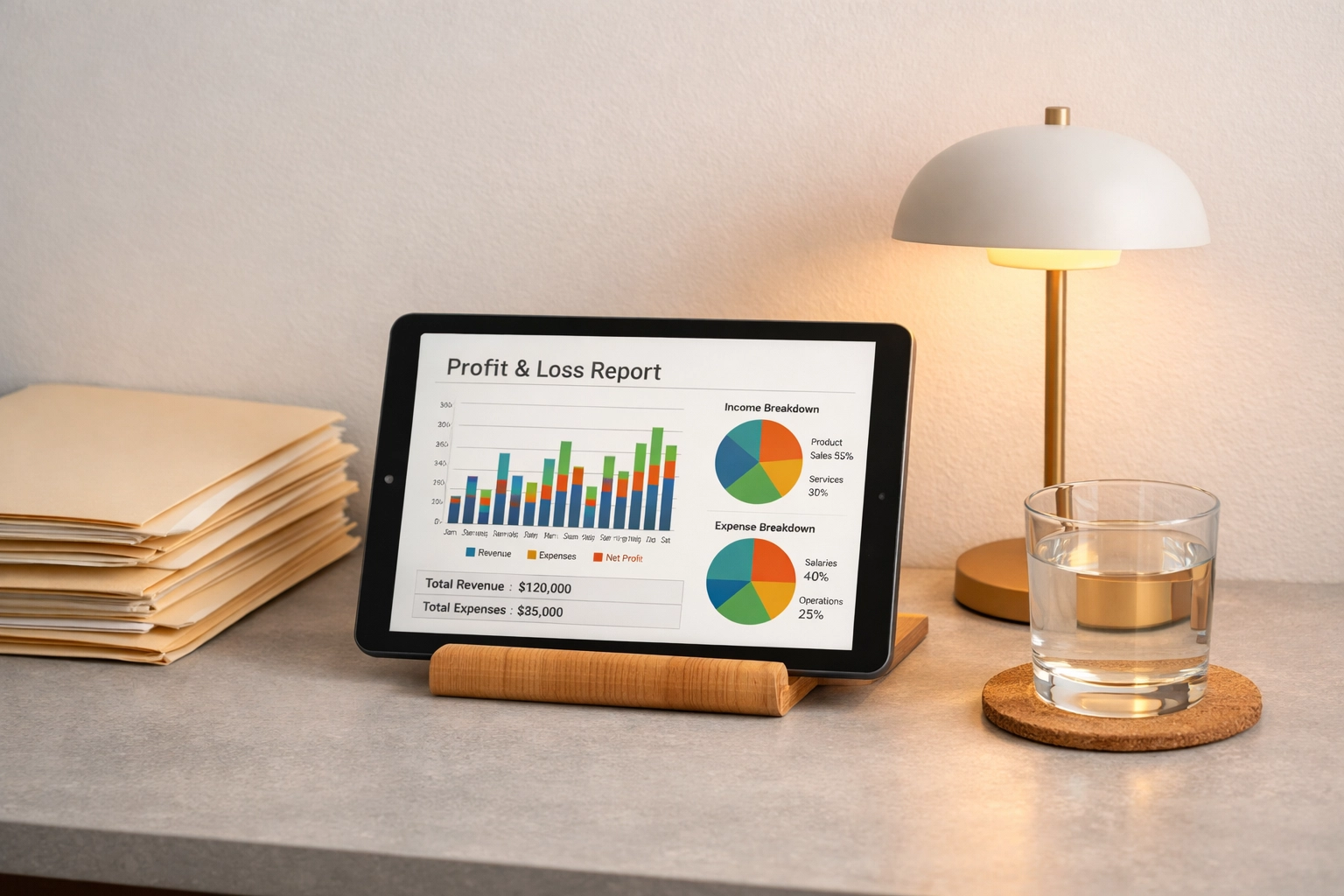
What you're looking for: A few specific things that signal trouble:
Way too many expense categories (anything over 50 usually means things got out of hand)
Duplicate categories with slightly different names (like "Office Supplies" and "Office Expense")
Uncategorized expenses sitting in "Ask My Accountant" or "Uncategorized Expense"
Income or expenses in the wrong sections (like seeing an expense in the income section)
Why it matters: Your Profit & Loss report tells you where your money is actually going. If the categories are a mess, you can't see useful patterns. You won't know if your marketing spend is creeping up, or if one property is costing more to maintain than another, or if client costs are eating into your margins.
Firm owners need clean P&L reports to track profitability by service line or client type. Real estate investors need them to compare performance across properties and see which expenses are controllable versus fixed.
When tax time comes, your CPA will also be pulling from these categories to fill out your return. Messy categories mean more back-and-forth questions and a bigger bill for cleanup work.
What to do about it: Look at your top 10-15 expense categories. Do they make sense? Can you tell what's actually in each one?
If you see duplicate categories, don't try to merge them yourself in QuickBooks: you can accidentally delete transactions. Instead, just make a note of them.
If you see expenses sitting in "Uncategorized" or "Ask My Accountant," click into those and see how much is there. Sometimes it's just a few transactions you can quickly categorize. Sometimes it's months of unreviewed charges that need attention.
The goal isn't perfection. The goal is knowing where the biggest messes are so you can prioritize what needs fixing first.
What This Actually Tells You
These three spots: Undeposited Funds, Balance Sheet negatives, and P&L category chaos: aren't random. They're the places where small mistakes pile up into big problems.
The 10-minute health check isn't about fixing everything. It's about knowing whether your QuickBooks file is basically solid or if it needs real attention before tax deadlines hit.
If you spot one or two minor issues, you can probably handle them yourself or with a quick call to your bookkeeper. If you're seeing red flags in all three areas, that usually means deeper problems that got baked in over time: and those are worth addressing now instead of scrambling later.
Your books should give you clarity, not stress. A quick check now can save you hours of headache in March.
Need a second set of eyes on your QuickBooks file? Our QBO Check-Up Session walks through exactly these red flags and gives you a clear breakdown of what needs attention.


Comments